Quiz mode
Important!
5 minutes before a quiz starts, the students' earlier work on the questions in the quiz is set aside and cleared.
Quiz mode lets you run quizzes in the app.
What quiz mode does
- 5 minutes before the quiz starts, the students' earlier work on the quiz questions is set aside and cleared, so the whole quiz starts from a blank page.
- At that moment the students are signed out and have to sign in again, so make sure all of them can sign in confidently.
- From then on the students are locked into the quiz: they see a waiting screen, and the quiz opens for them automatically at the start time. Their other tasks are paused until the quiz ends, and subjects, textbooks, search and shared solutions are closed. A student who tries to open another page is sent back to the quiz.
- The solution page in quiz mode has no option to ask for hints.
- In quiz mode students can submit as many times as they like, but no feedback appears after submitting. Only submitted answers are checked — changes not submitted by the end of the quiz are not checked, and 5 minutes before the end the students get a reminder to submit.
- When the quiz time is over, the quiz questions are closed for submission, and all other exercises and tasks go back to normal.
- You see your students' submissions and grades as usual, during the quiz too.
Creating a quiz task
In the task settings (on the Edit task page, or Task settings in the task's ⋯ actions menu on the Tasks page), choose Quiz under Mode, and set when it Starts and when it Ends. A quiz must have a start time, at least 5 minutes after saving, so the class can be prepared.
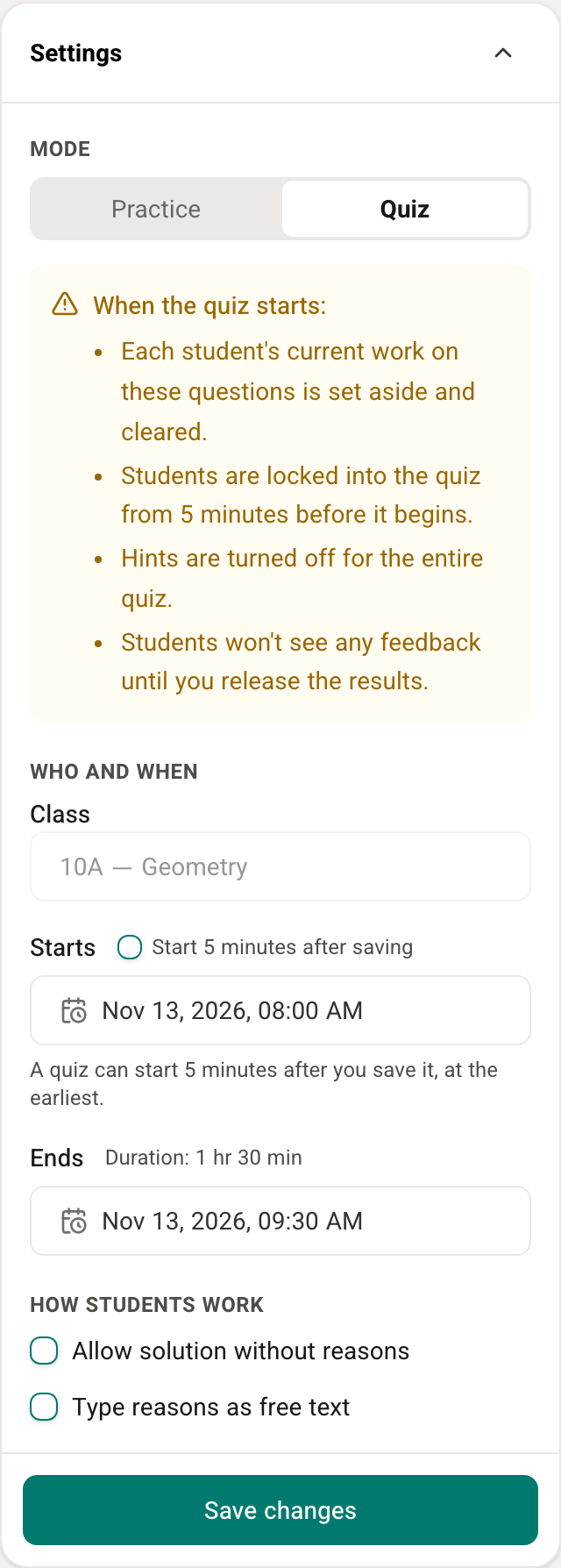
Once the quiz has started, its questions and settings are fixed. The mode (practice or quiz) can't be changed once students already have the task. A quiz that is under way can be ended earlier or extended, through Ends — but at least 5 minutes ahead, so the students get notice.
After the task is saved it shows the Quiz label, with the quiz's state beside it: Upcoming, Starting soon, Live, Ended, and after results are released Open to view, no feedback, Open to view, with feedback or Open for corrections.
After the quiz: releasing results
When the quiz ends the students don't see their results, only which questions they handed in. What they will see is set in Release results, in the task settings, one step at a time:
- Nothing yet — the state when the quiz ends.
- Students' solutions — the students see the answers they submitted, without feedback.
- Feedback — the students also see the feedback and grades.
- Editing and resubmitting — the quiz works like a practice task: the students can correct and resubmit.
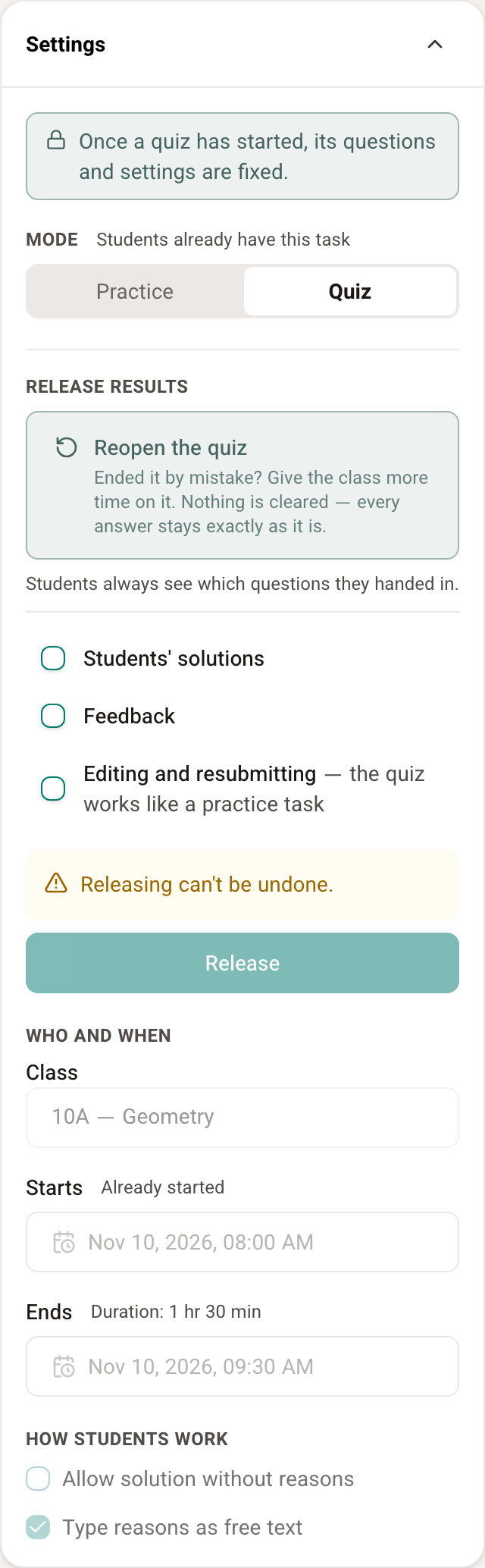
Releasing can't be undone. As long as nothing has been released, you can Reopen the quiz (in the task settings, or in the task's ⋯ actions menu) — if the quiz ended by mistake, choose a new end time and save, and the class goes back into the quiz. Nothing is cleared, and every answer stays exactly as it is.
Using quiz mode well
- The students are practised and confident in using the app.
- Set a start and end time that suit all the students — plan ahead for extra time, because the quiz times are shared by the whole class.
- Make sure you are happy with the app's grades before releasing the feedback to the students.
- If you release Editing and resubmitting and students change their solutions, you can see the original solutions on the All submissions page.