Adding statements to a proof using the diagram
For segments and angles you can add marks on the diagram, and add statements to the proof from them.
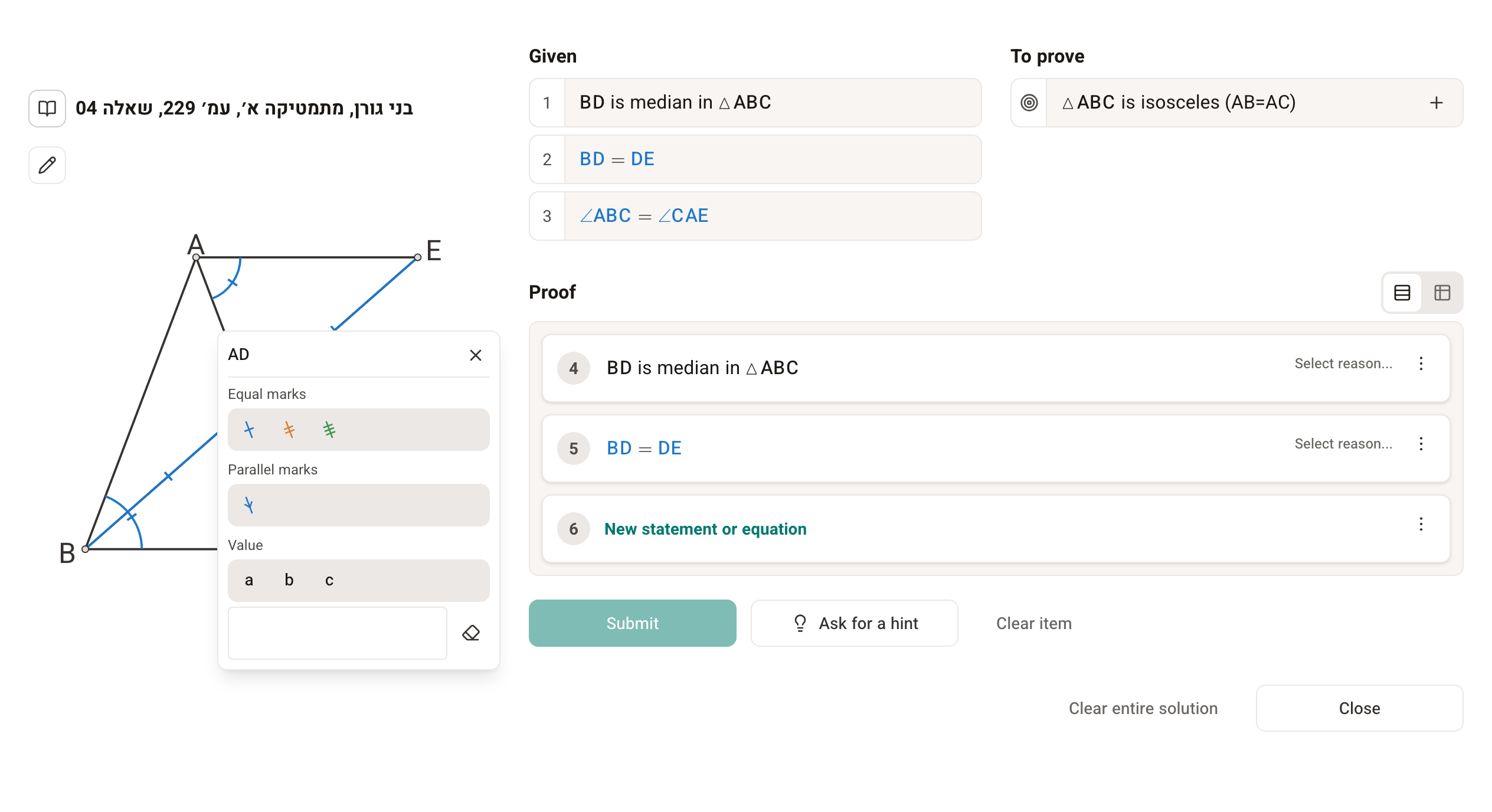
When you click an angle or a segment on the diagram, a menu opens with different options for marking the element: Equal marks, Parallel marks (for segments), Right angle (for an angle that looks right on the diagram) and Value.
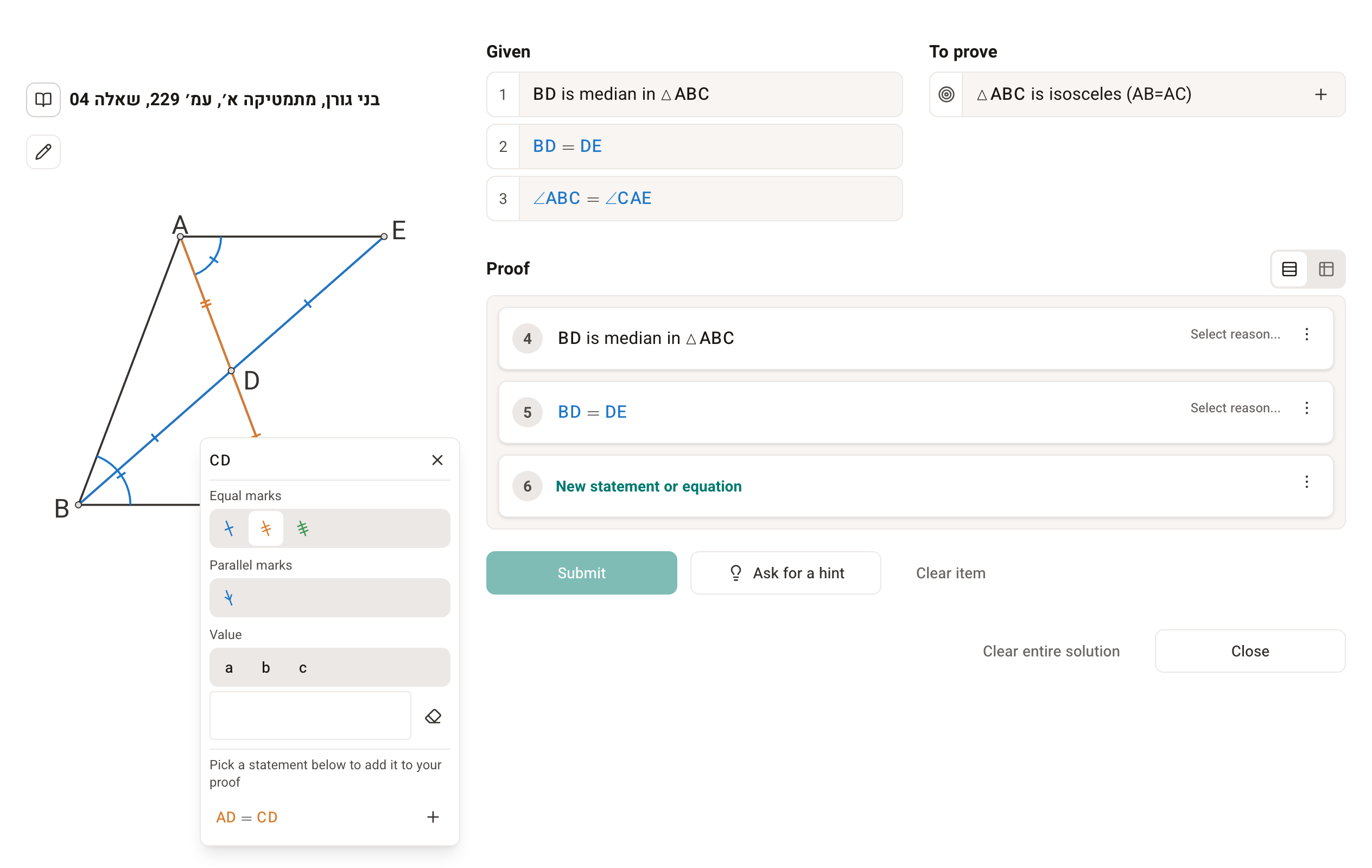
When you mark two or more elements with the same equal mark, the menu suggests the matching equality under Pick a statement below to add it to your proof. Clicking the statement adds it to the proof. As long as a mark suggests no statement, for example when you have marked only one element, the menu closes right away and you can move on to the next element.
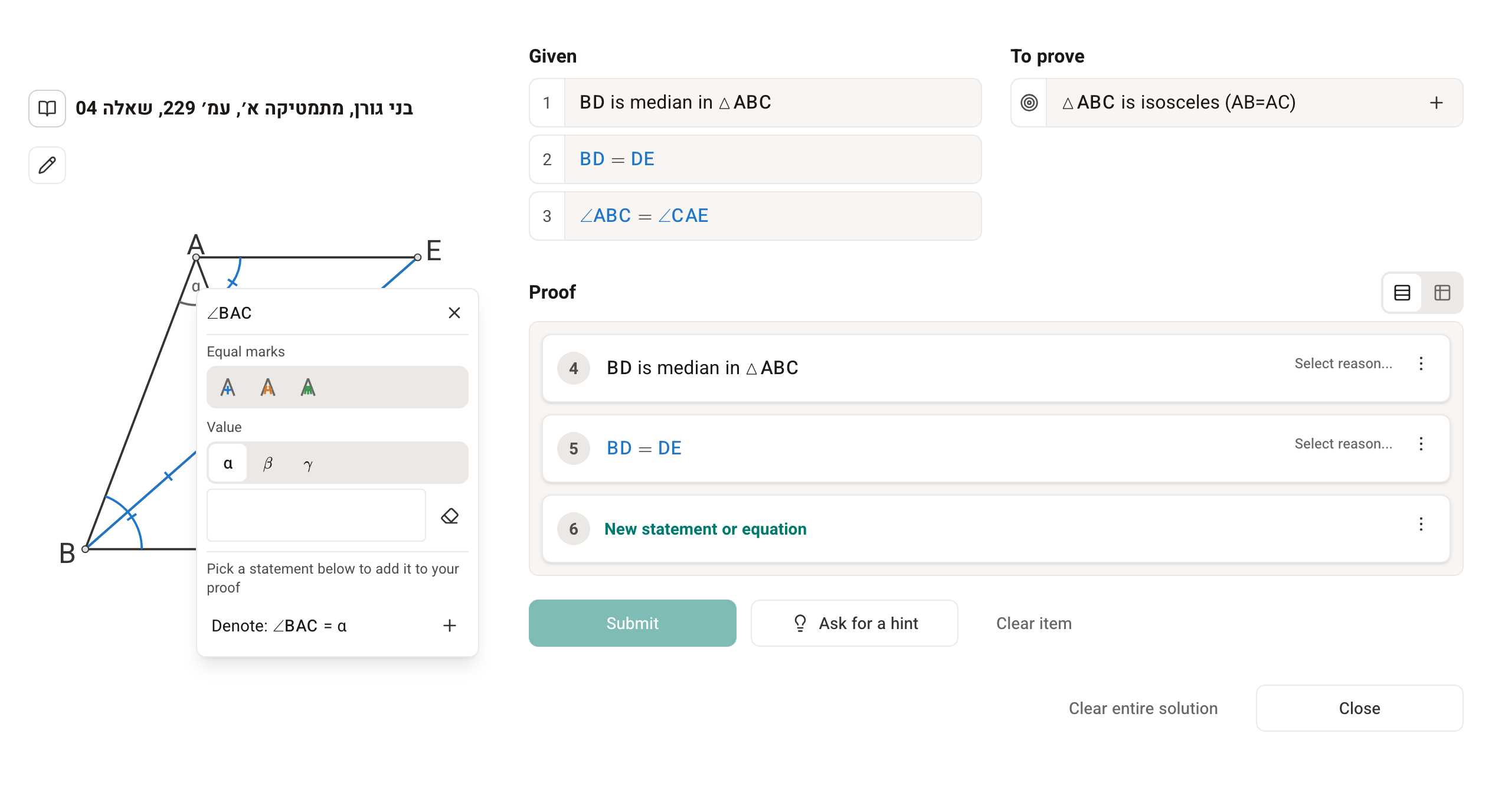
A value mark also suggests a matching statement, for example ∠BAC = α. So do a right angle and parallel marks.
The marks themselves are not part of the proof: a statement enters the proof only when you pick it from the list. It is added without a reason, and you choose the reason yourself. For some statements the system fills in the reason and marks it Auto. A statement that is already in the proof shows a ✓ (Already in proof).
Deleting marks and statements
- To delete a mark, click the chosen mark in the menu again.
- To delete a value you typed, click the eraser (Clear value).
- To delete a step in the proof, click Delete step in the step's menu (⋮).
Deleting marks on the diagram does not delete statements from the proof, and deleting a step in the proof does not delete your marks. The statements in the proof are marked on the diagram automatically, so a statement you added to the proof stays marked even after you delete your own mark.