Sharing solutions
FullProof lets teachers save solutions to questions and open them directly through a link.
Anyone using FullProof can open the solution through that link. Saved solutions are listed on the My library page (in the Teacher menu), on the Solutions tab, so you can always copy the link again from there.
Saved solutions are presented step by step. You can use them as a teaching tool and work them into diverse teaching practices.
Saving a solution to your library
Only a teacher account can save a solution, from two different screens:
- In the Task report, the Student report and All submissions, when you view a student's solution, the Save to library button is at the top of the window.
- On the proof screen, when you solve a question yourself, the Save to library button is below the items. The save includes every item of the question.
In the Save to library window:
- Solution name (optional) – filled in with the question's name. Anyone with the link sees the name, so don't write the student's name in it.
- Include feedback in the shared solution – shown when the solution has feedback. Once saved, this choice can't be changed.
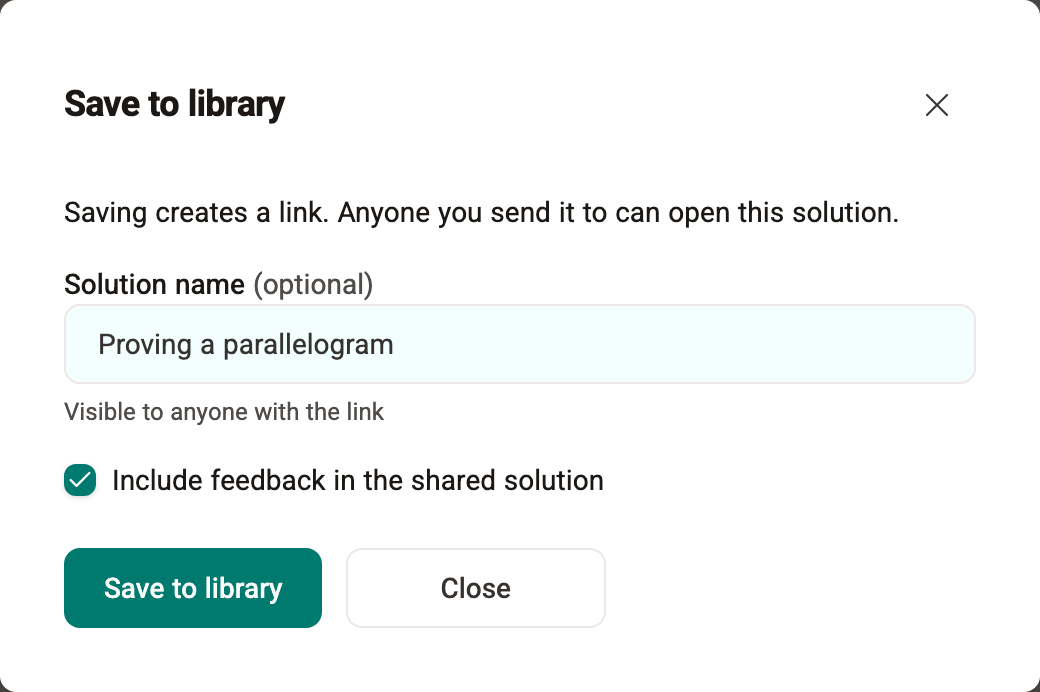
Clicking Save to library creates the link. Right after that you can open the solution (Open solution) or copy the link (Copy link).
My library
The Solutions tab of the My library page lists every solution you have saved, with its question and the date you saved it. Clicking a solution's name opens it. Each solution's ⋯ actions menu has:
- Rename – the new name also shows for anyone who already has the link.
- Copy link
- Remove – the solution is removed from your library and the link stops working: anyone who already has it can no longer open the solution.
- Go to question
Viewing the solution
Anyone with a FullProof account can view the solution: just click the link (if you are not signed in, you are asked to sign in and then taken to the solution).
The solution opens at the first step. Next step reveals the next step, and the double arrow (Show full solution) shows the whole solution.
Feedback is hidden at first; the Feedback button shows it. If the solution was saved without feedback, the button is inactive.
The solution is shown without the student's name. Only teachers see the score.
To present a student's solution in class without creating a link, choose Present step by step in the solution's ⋯ actions menu.