Signing up and signing in (students)
You sign in to a new or existing account at app.fullproof.io.
You can sign in with the Ministry of Education sign-in.
If you had a FullProof account before you signed in with the Ministry of Education, connect your FullProof account to your Ministry of Education account.
If you forgot your username or password, ask your teacher to recover them, and don't open another account.
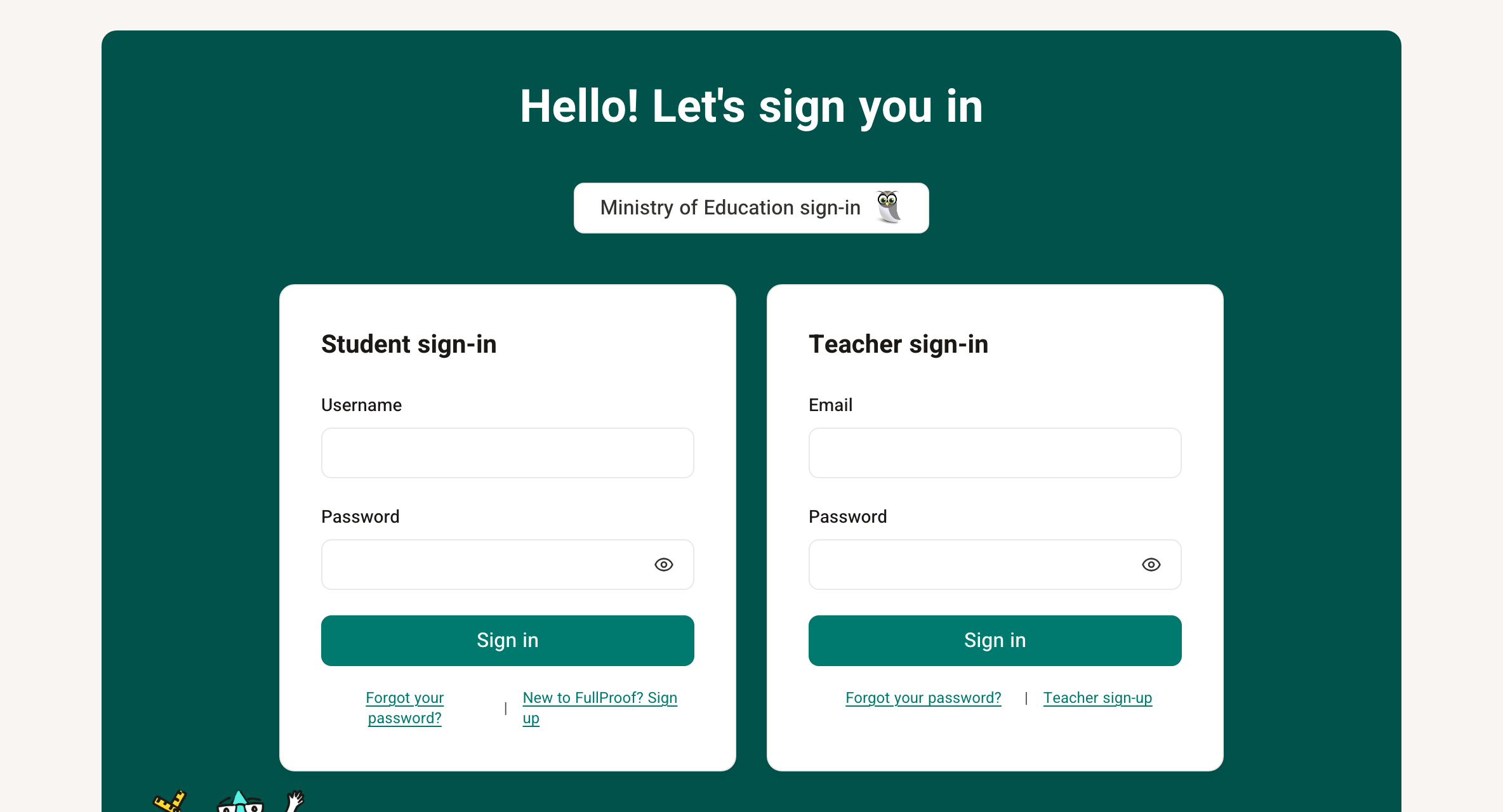
Signing in with the Ministry of Education sign-in
After your first sign-in with the Ministry of Education sign-in, connect your account to a class (to see the tasks your teacher gives you) or to an existing account (to keep your work in one place).
You connect to a class under Connect to class, with the class code (8 capital English letters) your teacher gives you.
You connect to an existing FullProof account under Connect an existing account, with its username and password. If you forgot the username and password, your teacher can help you recover them. In that case you are connected to the class automatically.
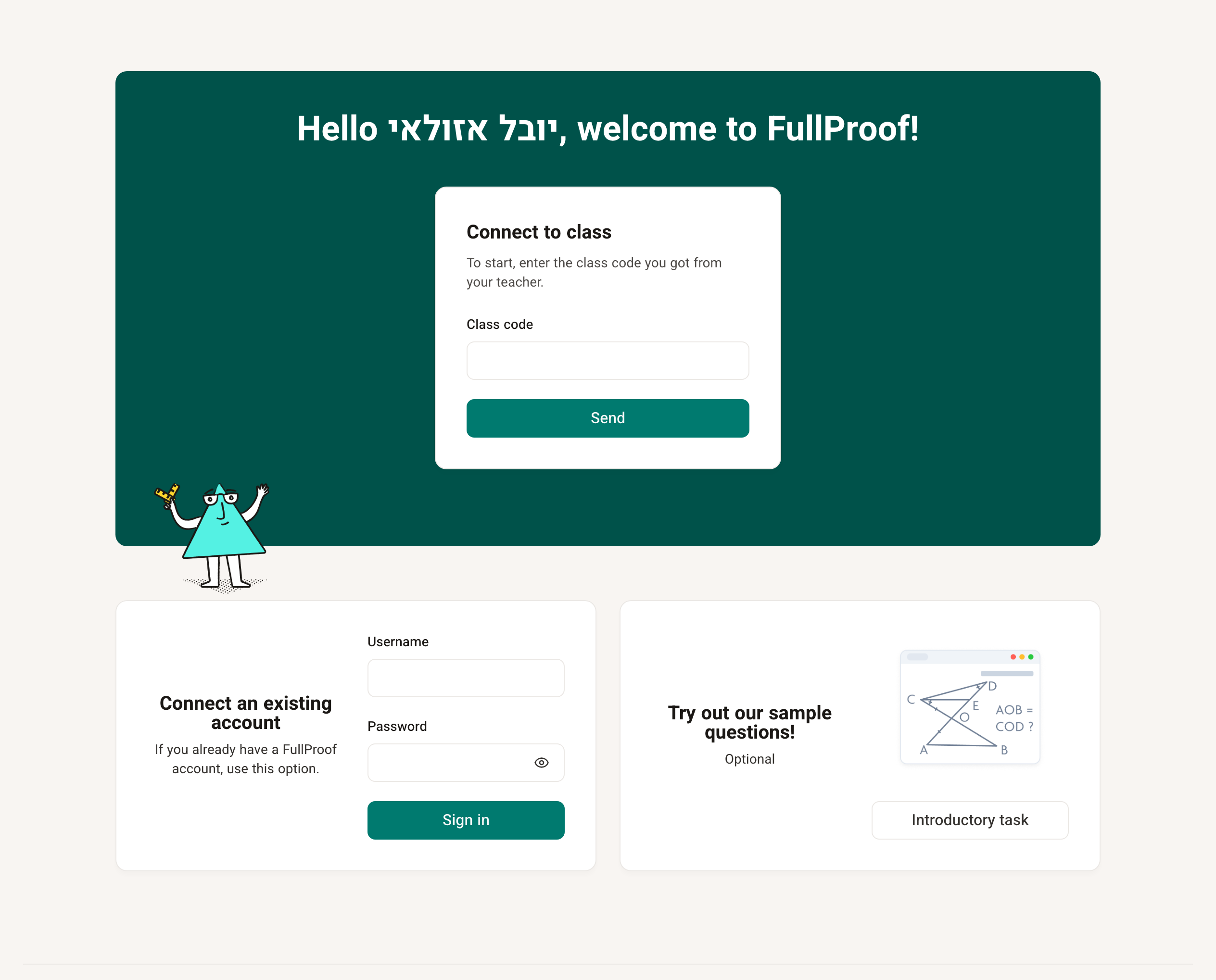
If you did neither after your first sign-in, you can do it later in My profile, in the menu that opens when you click your name in the top bar.
Signing in with a username and password
On the sign-in page, choose Sign in with a username and password. There, under Student sign-in, existing users enter their username and password to sign in.
To create a new account, choose New to FullProof? Sign up and fill in the form.
Creating a new account
Every user creates their own account. To create one, enter the following:
A Username you choose yourself — English letters and digits, with no spaces. You can use the @ sign to use your email address as your username (recommended).
You also choose the Password yourself. It must be different from the username and at least 6 characters long. A password that is too easy to guess is not accepted.
First name and last name, as they will appear in the class list in the system.
The Registration code you got from your teacher. If you got a sign-up link, this field fills in automatically. The registration code puts the new account in the right class. It is made of 8 capital English letters.
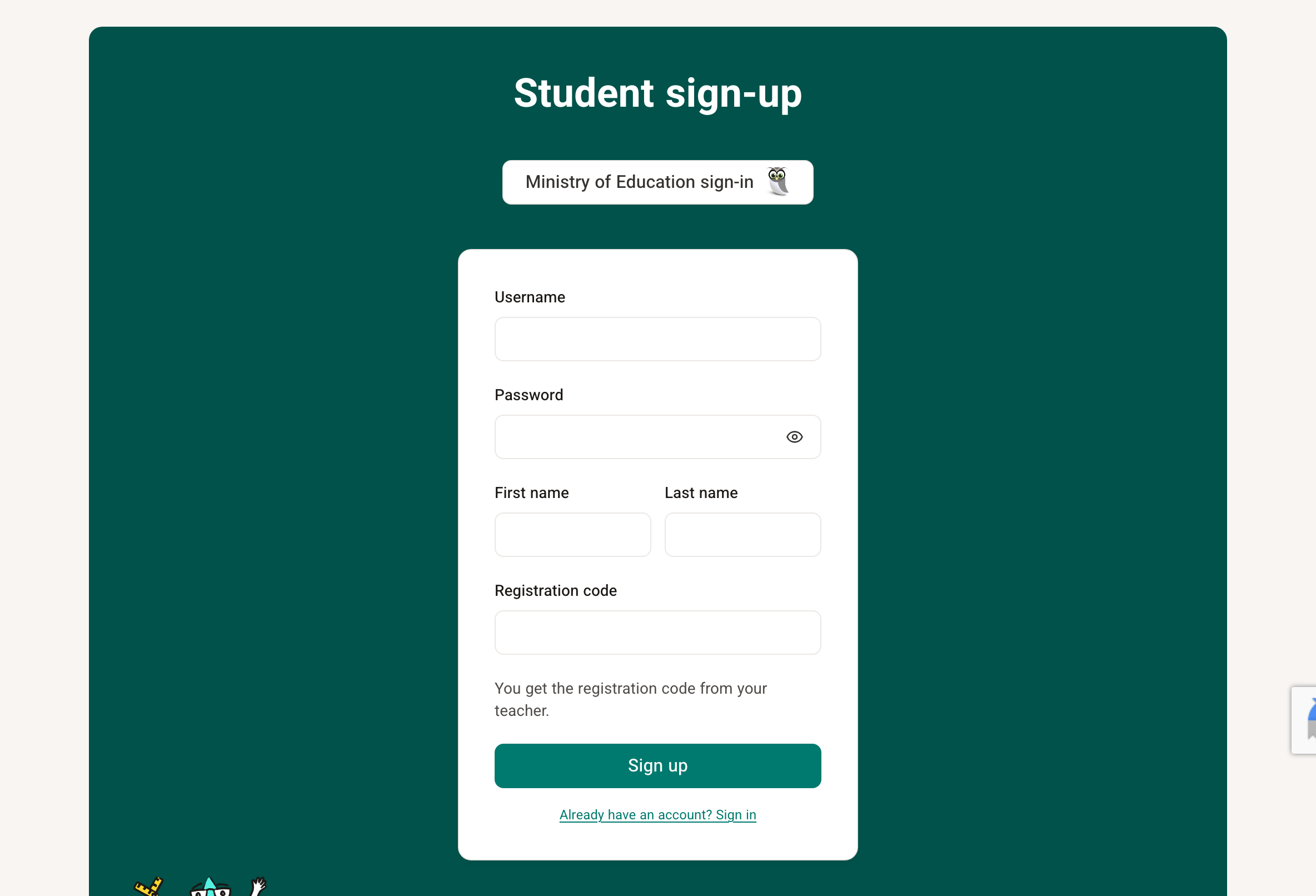
Moving class and updating your name
To update your name in the system or move from one class to another, sign in to your account, open My profile and edit your details. To move class, click Move to another class; you need the registration code of the new class.
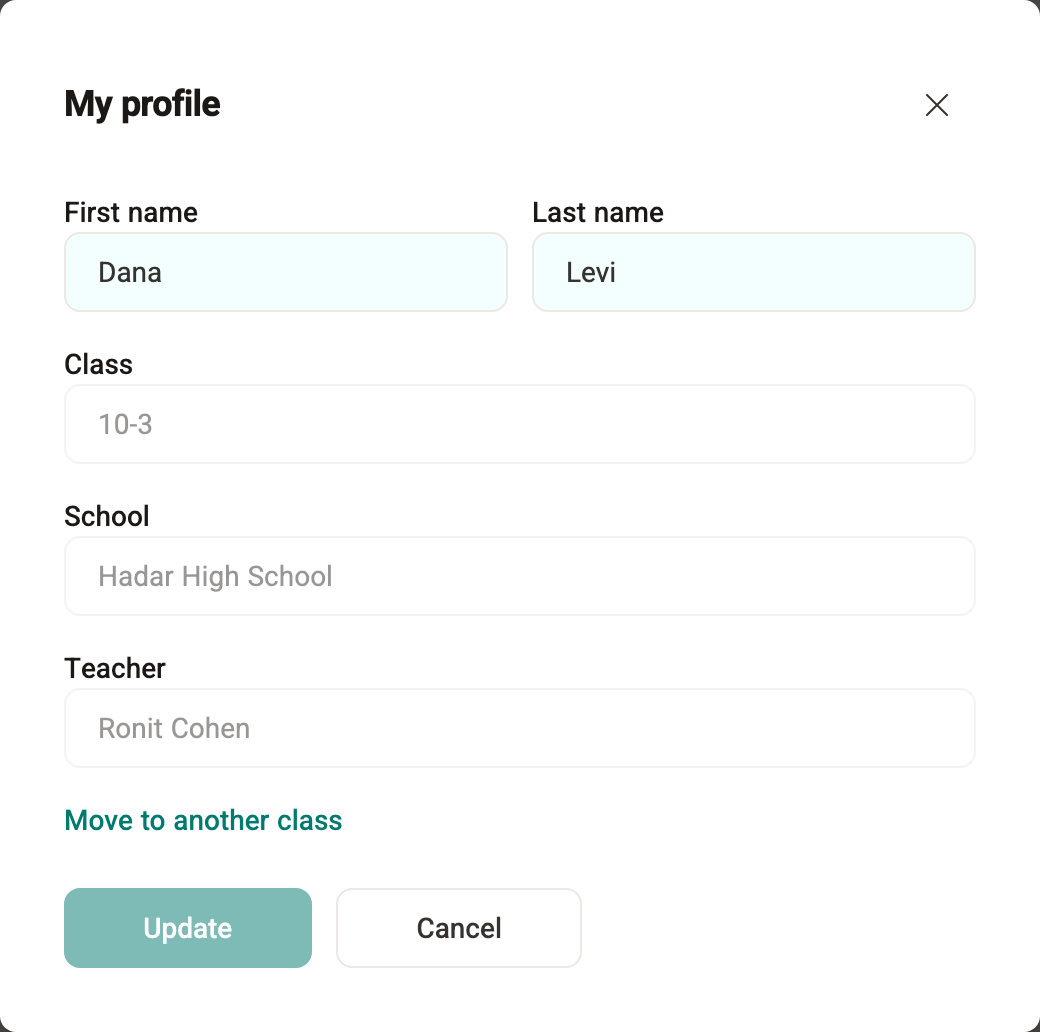
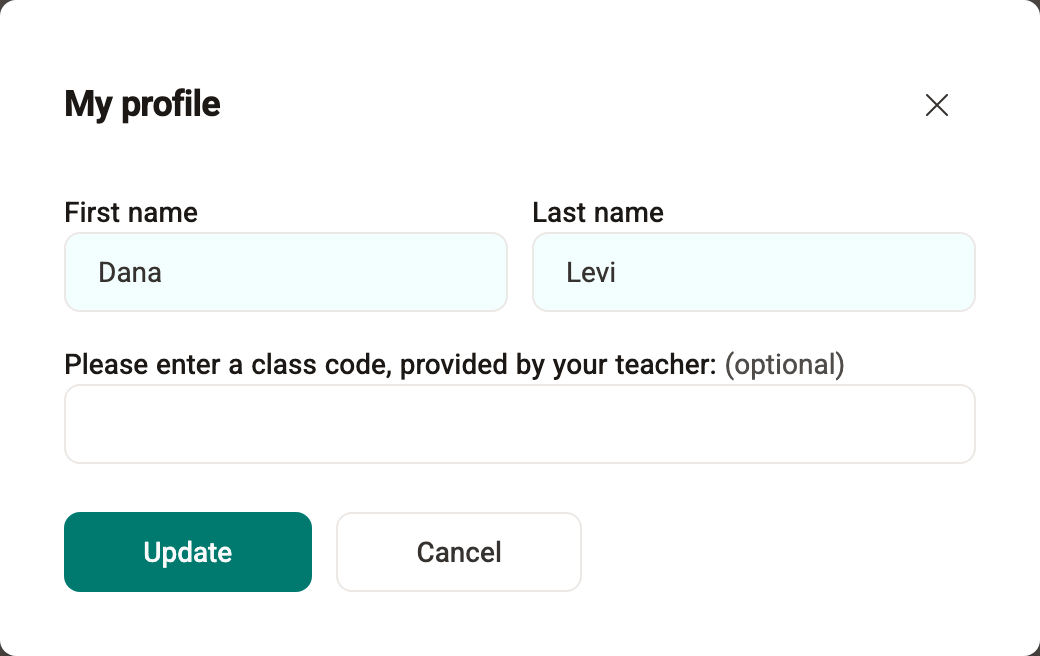
If you signed in with the Ministry of Education sign-in, your name is updated automatically from the Ministry's records and cannot be edited.