Creating and managing tasks
The intro task
An intro task is assigned automatically to every new class, according to the class's level. More on the Intro tasks page. If the intro task created automatically doesn't suit the class, you can remove it from the class (Remove from class in the task's ⋯ actions menu) and choose another intro task from the list of ready-made tasks.
Giving a task to a class
A new task from the class page
To create a task for a class, open Class progress in the menu, pick the class (you can switch to another class through All classes), and on the Tasks tab click New task.
In the window that opens you can start from a ready-made task: choose a Level, a Subject and a Task, then click Select questions to edit the task and save it for the class. Alternatively, start from an empty task by clicking Select questions without choosing a task from the list.
Write or change the task's name in the Task name field at the top of the page.
Clicking Add question opens a window where you can pick questions From textbook, By subject from the collection of ready-made tasks, or by searching for a question's name or its number in the system.
You can reorder the questions by dragging them, or through the question's ⋯ actions menu (Move earlier / Move later). To take a question out of the task, choose Remove in the same menu.
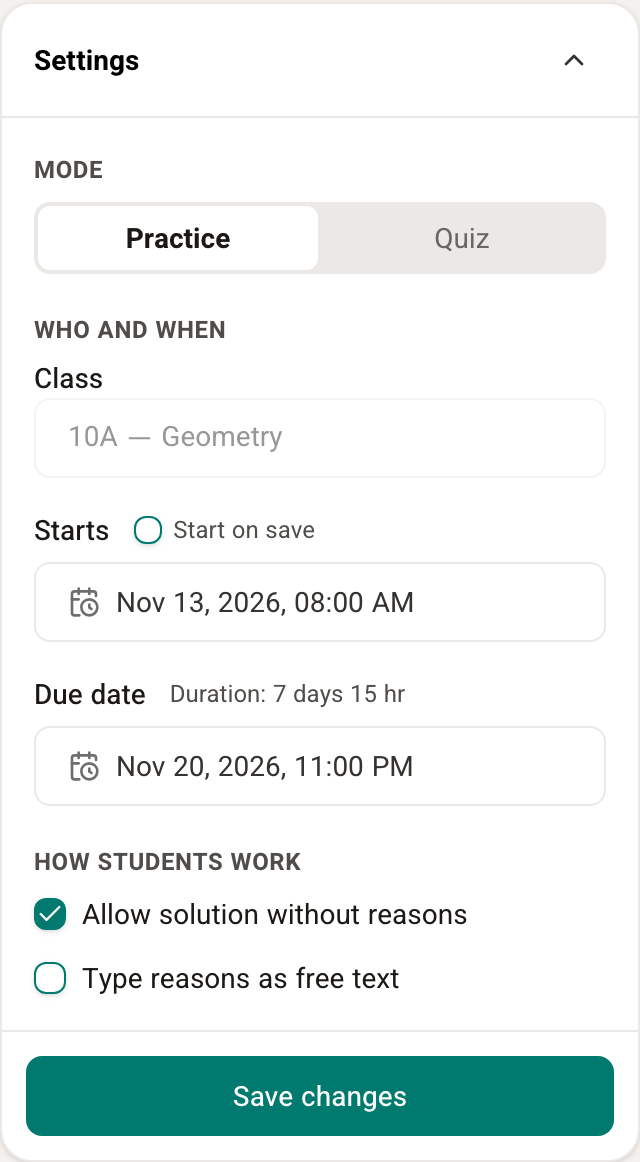
The settings are in the Settings panel at the side of the page:
- Mode: Practice or Quiz. Once the task has reached the students, the mode can no longer be changed. More in Quiz mode.
- Who and when: the class that gets the task (you can switch classes only before the first save), when the task opens to the students (Starts; the default is Start on save), and the Due date.
- How students work: Allow solution without reasons and Type reasons as free text.
To finish and give the task to the class, click Save task. To save, the task needs a name, at least one question and a due date.
From now on the new task appears on the class's students' My tasks page, and on the class's Tasks tab. Tasks are grouped by due date (Upcoming, Last week, Last month and so on).
Giving a task from the subjects
On the Subjects pages teachers have a Create new task button, which opens the subject's set of questions as a task to edit. Continue as described above.
Giving a task from the teaching units
The teaching units in this help center are built from lesson plans that cover the curriculum widely. Each lesson has links for giving the lesson's practice and homework to your students. The link opens the Copy task to a class page; continue as described above.
Changing and removing a task
The class's Tasks tab lists every task given to the class. Clicking a task's name opens its Task report, where you can follow the students' progress on the questions.
Each task has a ⋯ actions menu:
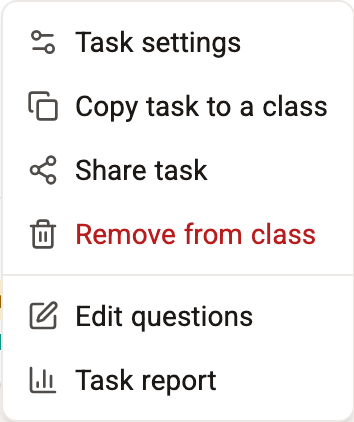
- Task settings: change the dates, the mode and how students work.
- Copy task to a class: make a copy of the task, for the same class or another one.
- Share task: a link for sharing the task with other teachers.
- Remove from class: cancel the task for the class.
- Edit questions: add, remove and reorder questions (in tasks you created yourself).
- Task report.
Whenever questions are taken away (removing the whole task from the class, or removing single questions while editing the task), the students' solutions stay saved in the system and are not deleted.
When the class is archived, or the teacher account has no licence, the New task button is inactive, and clicking it explains why.