Classes and the classes report
The class pages
Two pages show all of the teacher's classes, and for the school administrator in the system, all the classes in the school. Teachers who work in more than one school choose the school at the top of the page.
All classes (in the Teacher menu) shows how far each class has progressed, as cards or as a table (Cards / Table). The table's columns:
- Class - a link to the Class progress page (see The class page and class report)
- # Students
- # Tasks - every task given to the class
- Progress - a progress bar by the state of the work in all of the class's tasks (Excellent, Solved, In progress, To do), an assessment of the class (for example On track or No active task), and the number of error reports and late submissions.
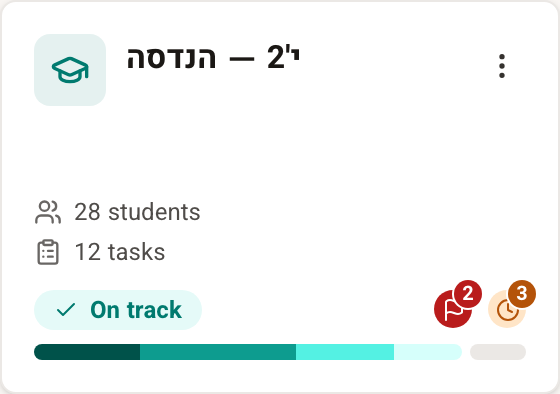
At the top of the page there is a summary: the number of classes, students and tasks, and a Pace row that counts the classes by their state. Clicking one of the states highlights the classes in that state.
Class management (in the Teacher menu, under Management) shows the classes' details. The table's columns:
- Class name - a link to the Class progress page
- Teacher - the teachers who teach the class; a class can have several teachers
- # Students
- # Tasks
- Created - the date the class was opened
- Code - the registration code students use to join the class
Archived classes are hidden on both pages; to see them, tick Show archived classes, and they appear in grey at the bottom. You can still reach the information on these classes, but you cannot give them new tasks, and students cannot join them.
Actions on the class pages
Actions you can take on both pages include:
- Creating a new class (New class)
- Actions on an existing class, in the class's ⋯ actions menu: Edit class (change the name and level), Invite students (the registration code and the link for joining the class), Archive / Unarchive, and Manage teachers for the school administrator. The same menu also takes you to the class's Tasks, Students and User management. A detailed explanation is in Creating and managing classes.
- Producing the classes report as an Excel file (Export to Excel)
School administrator
A teacher who is set up in the system as the school administrator sees all the classes in the school, with their data and reports, and can replace or add a teacher for any class (Manage teachers). Administrators see the option Show all classes in school on the class pages, and it is ticked by default; unticking it shows only the teacher's own classes.
The classes report
The classes report is an Excel file that brings together the main data on the classes, in one sheet (Classes), with a row for each class: the class's name and level, its teachers, the date work started and the date of the latest task, the number of students and of active students, the number of tasks and of exercises in the tasks, the average number of exercises solved per student, and the average number of exercises solved with a score of 90 or above. The report includes only active classes: classes with more than three students, that have been given a task and whose students have submitted solutions. To create the report, click the Excel icon at the top of the page.