Managing student accounts
Creating student accounts
The signing up and signing in page has detailed instructions for students on getting into the system. For students to join your class, send them a registration code or a sign-up link. You'll find both under Invite students, in the class's ⋯ actions menu on Class management or All classes.
Managing student accounts
In the student list (Students on the class page, or User management) each student has a ⋯ actions menu for their account — remove from class, edit the name and so on. The menu changes with what's possible: for example, an account created with Ministry of Education sign-in can't have its password reset or its name changed.
Clicking a student's name opens the Student report.
Resetting a student's password
For security, you can only set a new password, not see the old one. This option isn't available for students who created their account with Ministry of Education sign-in.
Instructions for students who want to change their own password (once they have signed in) are on the signing up and signing in page.
Editing a student's details
This option (Edit student name) isn't available for students who created their account with Ministry of Education sign-in.
The full name is always shown as the last name followed by the first name.
Removing and merging student accounts
Remove from class removes the account from the class. Merge student accounts copies all the solutions from one account (Source account) to another (Target account) and disables the source account (for a student who worked in both accounts). A merge can't be undone.
A removal can be undone: on User management, tick Show deleted accounts, and choose Restore account from the student's menu.
Moving a student to another class
A teacher can move a student to another class they teach, through Move to class in the student's menu.
Students can also move themselves to the new class: they sign in, choose My profile in the user menu, then Move to another class, and enter the new class's registration code.
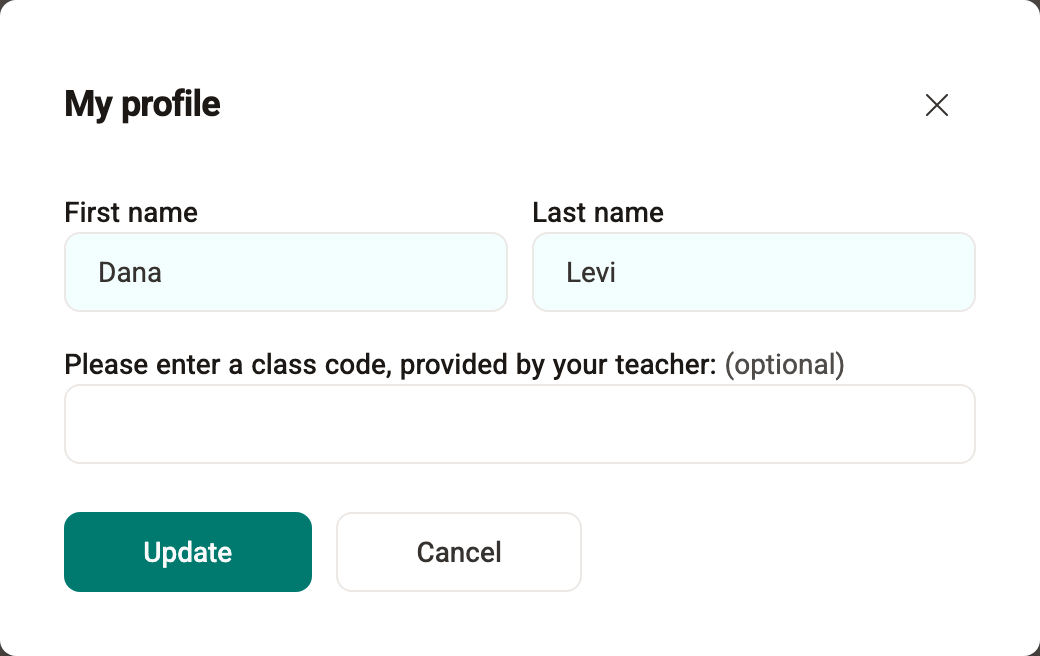
This option exists only in student accounts, not in teacher accounts.
Note: the assigned tasks move with the students, so you can see their whole history in the system. These tasks appear in the Student report, but not in the new class's Tasks.
Unlocking a blocked student account
Many sign-in attempts with a wrong password temporarily lock the student's account (status Locked). You can unlock it immediately from the student list, through Unlock account in the student's menu.